Configuring SSO on Mastodon
Using PocketID for passwordless authentication for my Mastodon instance
I have been on a roll adding SSO (with PocketID) to all my self-hosted services. One of the items on my list was my Mastodon instance.
There is no official Mastodon documentation for setting up SSO yet. The documentation page is still a WIP so this post may be a useful reference in the meantime for anyone trying to set this up.
I created a new OIDC client in PocketID as follows:
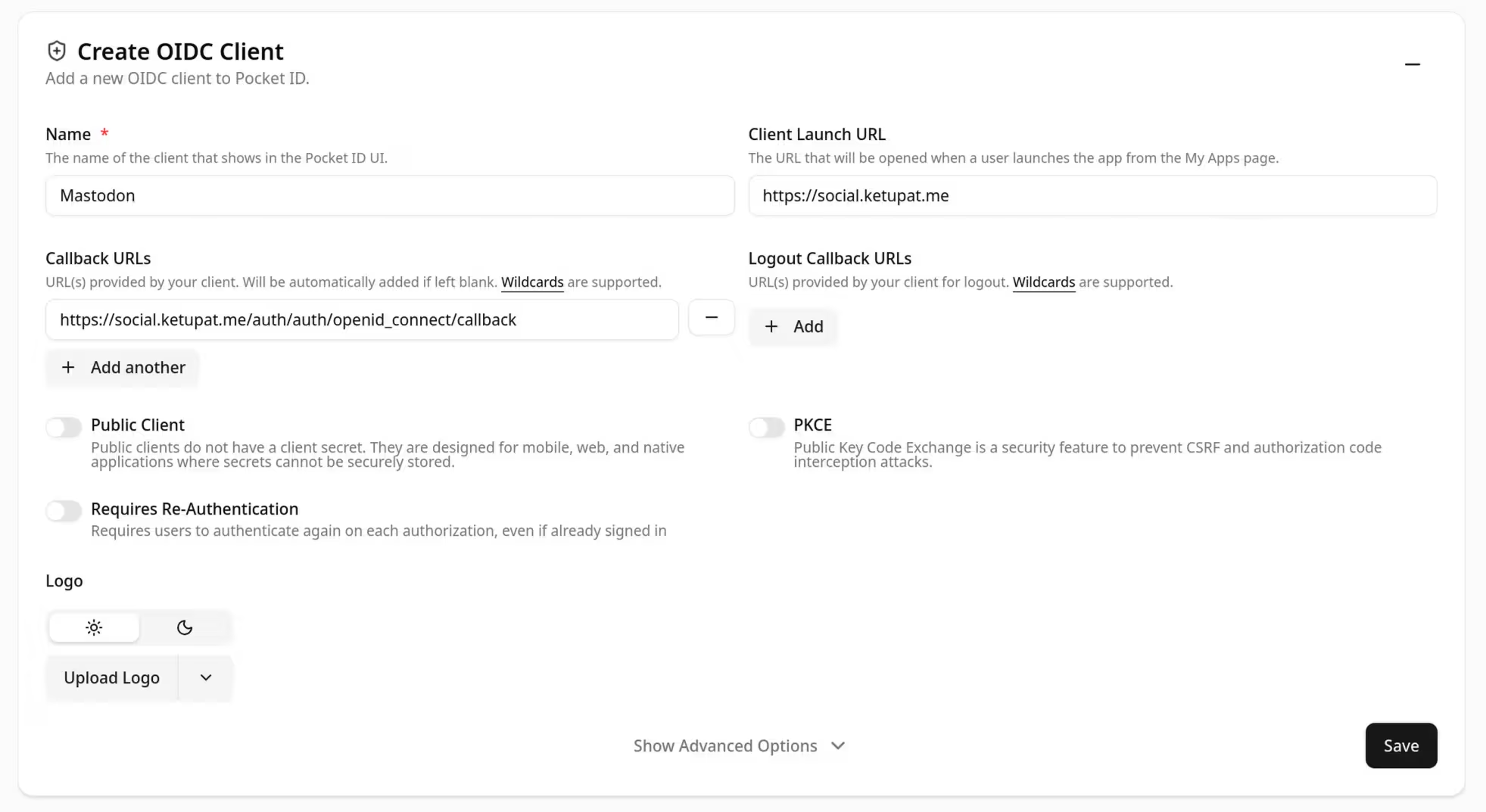
I set the callback URL to https://social.ketupat.me/auth/auth/openid_connect/callback.
I then added the following environment variables to my Mastodon deployment:
OIDC_ENABLED=true
OIDC_DISPLAY_NAME=PocketID
OIDC_ISSUER=[insert PocketID URL here]
OIDC_DISCOVERY=true
OIDC_SCOPE=openid,profile,email
OIDC_CLIENT_ID=[insert PocketID client ID]
OIDC_CLIENT_SECRET=[insert PocketID client secret]
OIDC_REDIRECT_URI=https://social.ketupat.me/auth/auth/openid_connect/callback
If the email address of your OIDC entity is different from the email address of your intended Mastodon user, you may find it useful to set a preferred username claim field and to configure that claim on your OIDC provider:
OIDC_UID_FIELD=preferred_usernameIf, like me, you have an existing user on the Mastodon instance already, when you try to log in with the above configuration, you are likely to face the following error message: Error creating an account for this identity.
Essentially, it seems that linking an OIDC identity to an existing local identity is not currently supported. But you can work around this by setting the following environment variable temporarily and logging in:
ALLOW_UNSAFE_AUTH_PROVIDER_REATTACH=trueYou can disable that environment variable after you have logged in and linked the accounts. It may also be possible to manually link the accounts through a SQL command.
If, after verifying that the SSO login works well, you want to disable username and password login and allow login through SSO only through a single click, you can do so by setting the following environment variables:
OMNIAUTH_ONLY=true
ONE_CLICK_SSO_LOGIN=true